
How to Upload Docs in AI Memory using API?
Langbase lets you create multiple AI memories that can be attached to an AI agent pipe. Each memory can contain multiple documents. You can either upload these documents via Langbase studio or via the API.
Let’s take a look at how you can upload documents to any AI memory in Langbase via API.
Step #1Generate a User/Org API key
You will need to generate an API key to authenticate your requests. To generate a User or Org API key, visit the User/Org API key documentation.
Step #2Get a SignedURL to Upload the Document
Uploading a document to a memory requires a signed URL. Send a POST request to this endpoint to get a signed URL and use the PUT method to upload the document.
POST /v1/memory/documents
Here’s how you can send a POST request with Node.js:
1async function getSignedUploadUrl() {
2  const url = 'https://api.langbase.com/v1/memory/documents';
3  const apiKey = '<YOUR_API_KEY>';
4
5  const newDoc = {
6    memoryName: 'rag-memory',
7    ownerLogin: 'langbase',
8    fileName: 'file.pdf',
9  };
10
11  const response = await fetch(url, {
12    method: 'POST',
13    headers: {
14      'Content-Type': 'application/json',
15      Authorization: `Bearer ${apiKey}`,
16    },
17    body: JSON.stringify(newDoc),
18  });
19
20  const res = await response.json();
21
22  return res;
23}
In the above requests, add user/org API keys.
Request params
The following are required header parameters of documents endpoint:
Content-Type:application/jsonAuthorization: Replace<YOUR_API_KEY>with your user/org API key.
The following are required body parameters of documents endpoint:
memoryName: The name of the memory where the document will be stored.fileName: The name of the document you are uploading.
Once the request is made, you'll receive a signedUrl in the response and the you can upload the document using the PUT method.
Step #3Upload the Document to the SignedURL
Now that you have generated a signed URL, let’s use the PUT method to upload the document in our AI Memory. The signed URL is valid for 2 hours.
Currently, we support application/pdf, text/plain, text/markdown, text/csv, and all major code files as text/plain. For csv, pdf, text, and markdown files, it should correspond to the file type used in the fileName attribute in step 2. For code files, it should be text/plain.
This is how the Node.js request looks like (for cURL and Python visit here):
1const fs = require("fs");
2
3async function uploadDocument(signedUrl, filePath) {
4  const file = fs.readFileSync(filePath);
5
6  const response = await fetch(signedUrl, {
7    method: 'PUT',
8    headers: {
9      'Content-Type': 'application/pdf',
10    },
11    body: file,
12  });
13
14  return response;
15}
The following are required header parameters:
Content-Type: The MIME type of the document (e.g.,application/pdf,text/plain).- The body should contain the actual file data.
Following these steps will allow you to successfully upload documents to Langbase's AI memory using the API.
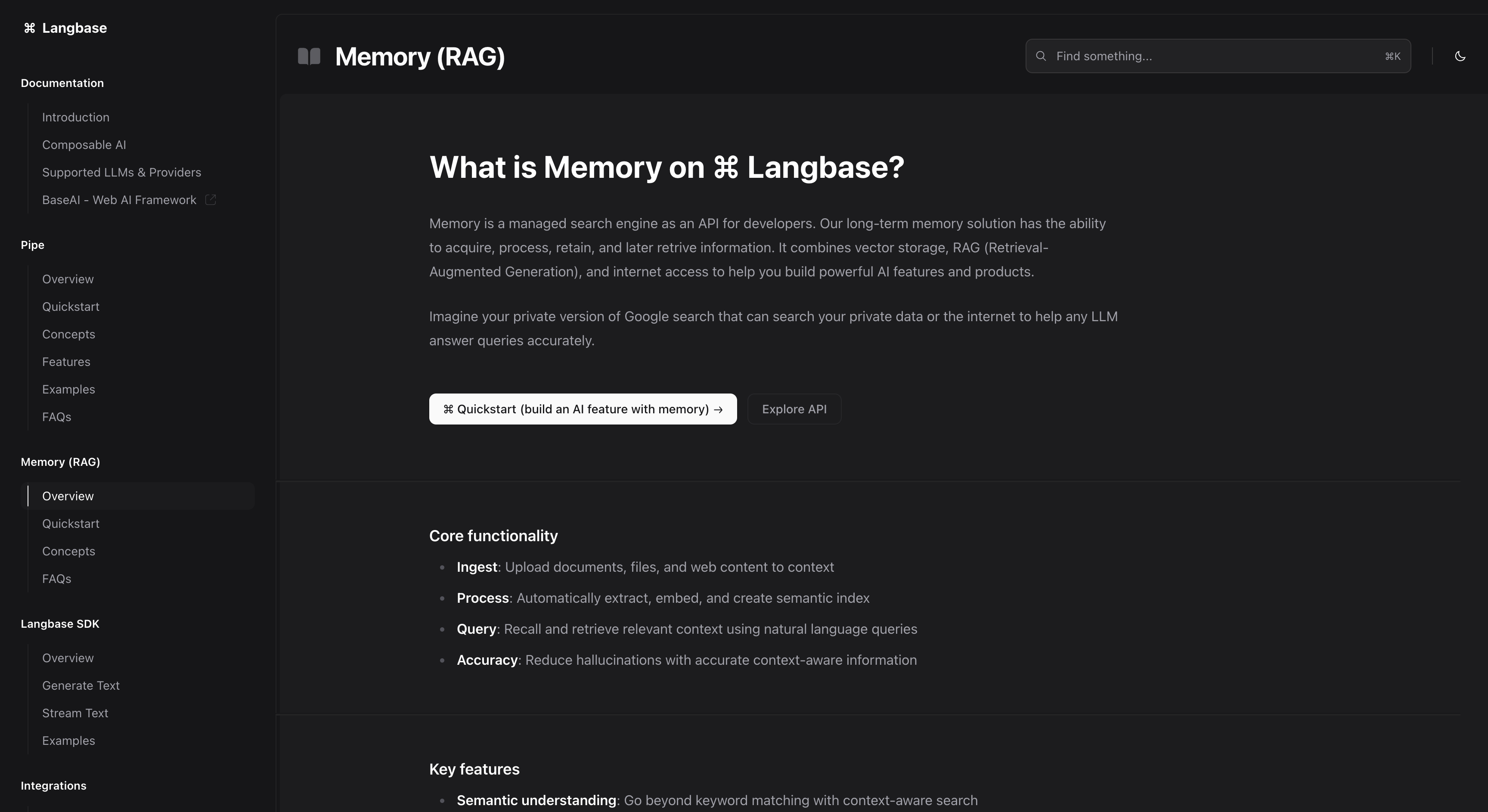
Upload documents to AI Memory using Langbase Studio
Check out this resource to help you get started with uploading your documents to AI memory using Langbase’s Studio.
Wrap up
Langbase AI memory is a great way to store, organize, and retrieve information. It can be used to build powerful Retrieval Augmented Generation (RAG) based AI agents which can use your data to assist with your queries.
By following this guide, you'll be able to quickly upload documents to memory using the API, making it easier to build and ship AI features.